
First-day setup
Get started with FieldFoxx
A short first-day guide. Steps 1–5 get you to your first quote. The rest can wait until you need it.
Have a question? Browse the FAQ
Create your account
Your 30-day free trial starts here. No card needed, and no monthly fee during the trial.
- Go to Sign up and enter your company name, your name, email, phone and a password.
- Confirm your email, then sign in.
- Add your business address, pick Individual or Business, and tap Start free trial.
Tip: Not sure which plan? Individual covers up to 3 people, including you. You can switch any time in Settings.
Create your accountSet up your company
These details show up on the quotes, invoices and reminders your customers get.
- Go to Settings → Company Settings.
- Upload your logo. It appears on quote and invoice emails.
- Add a Reply-to email so customer replies reach the right inbox.
- Check your time zone and how many days quotes stay valid.
- Leave Send automatic visit reminders on. Clients get a reminder the day before each visit.
- Set the Days you work.
- Tap Save Settings.
Add your crew
Everyone gets their own login and only sees what their role allows.
- Go to Team → Add member directly.
- Enter their name, a username and a temporary password.
- Pick a role: Technician for field crew, Member for office help, Admin for someone who helps run the business.
- Share the login details shown on screen.
- Optional: open a team member and set their working hours. You'll get a heads-up if you schedule them outside those hours.
Note: Individual covers up to 3 people, including you. Business has no limit.
Open TeamAdd your clients
Each client keeps the address, contact info and history for every job.
- Go to Clients → New Client. Add a name, address, email and Phone number.
- Have a list? Use Import customers at the bottom of the Clients page: download the template, fill it in, and upload your CSV. Only the name is required.
- Add tags like "weekly" or "commercial" to filter clients (and to sort them into Mailchimp audiences later).
Send your first quote
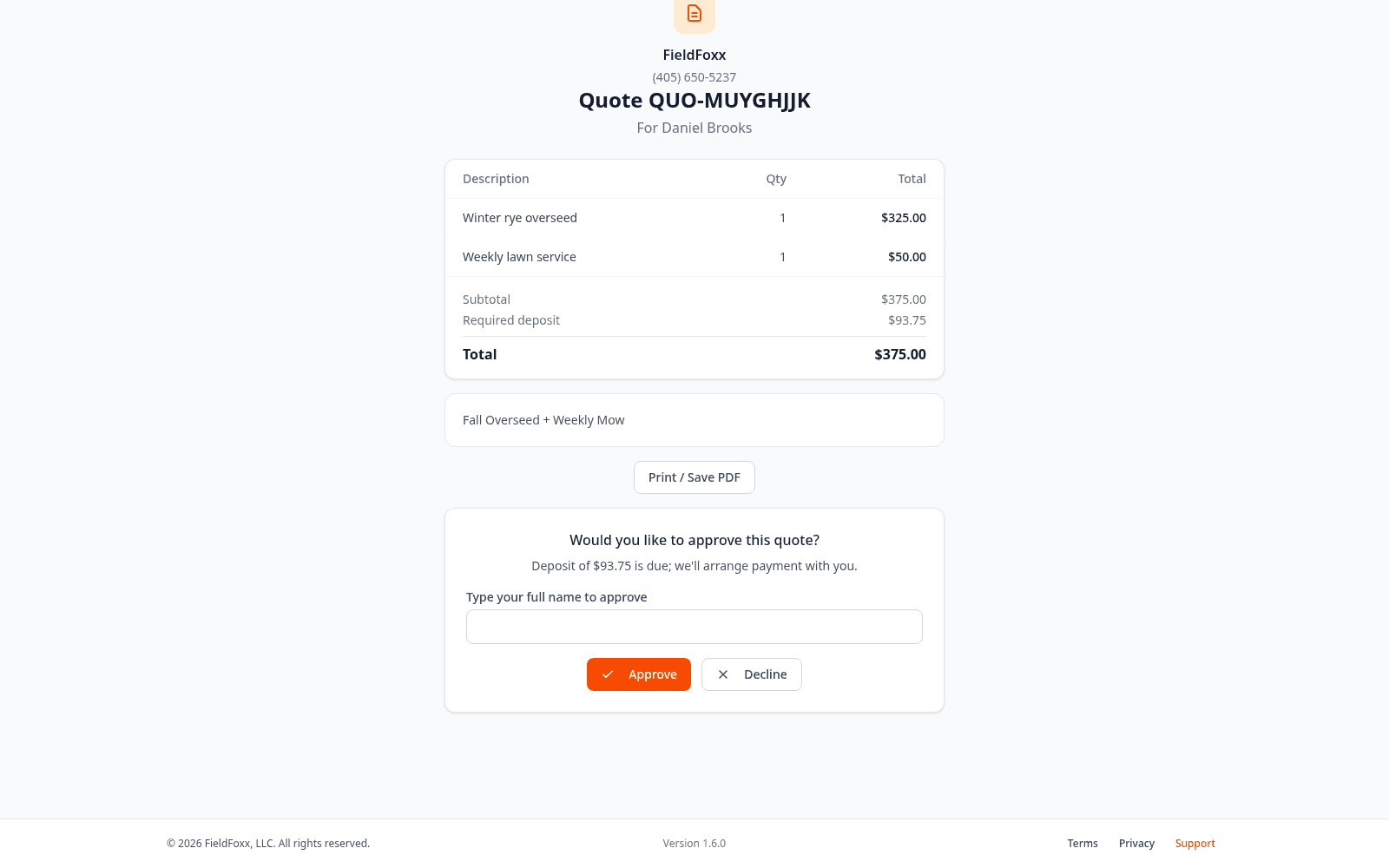
Customers approve online, and an approved quote becomes a job in one tap.
- Go to Quotes → New quote and pick the client.
- Add your line items. Mark extras as Optional add-on (customer chooses) so they can pick them. Those stay on the quote but are not counted in the total unless they pick them.
- Want money up front? Add a deposit as a dollar amount or a percent.
- Review it and tap Send to client.
- Once it's approved, tap Convert to job.
Schedule work and repeat visits
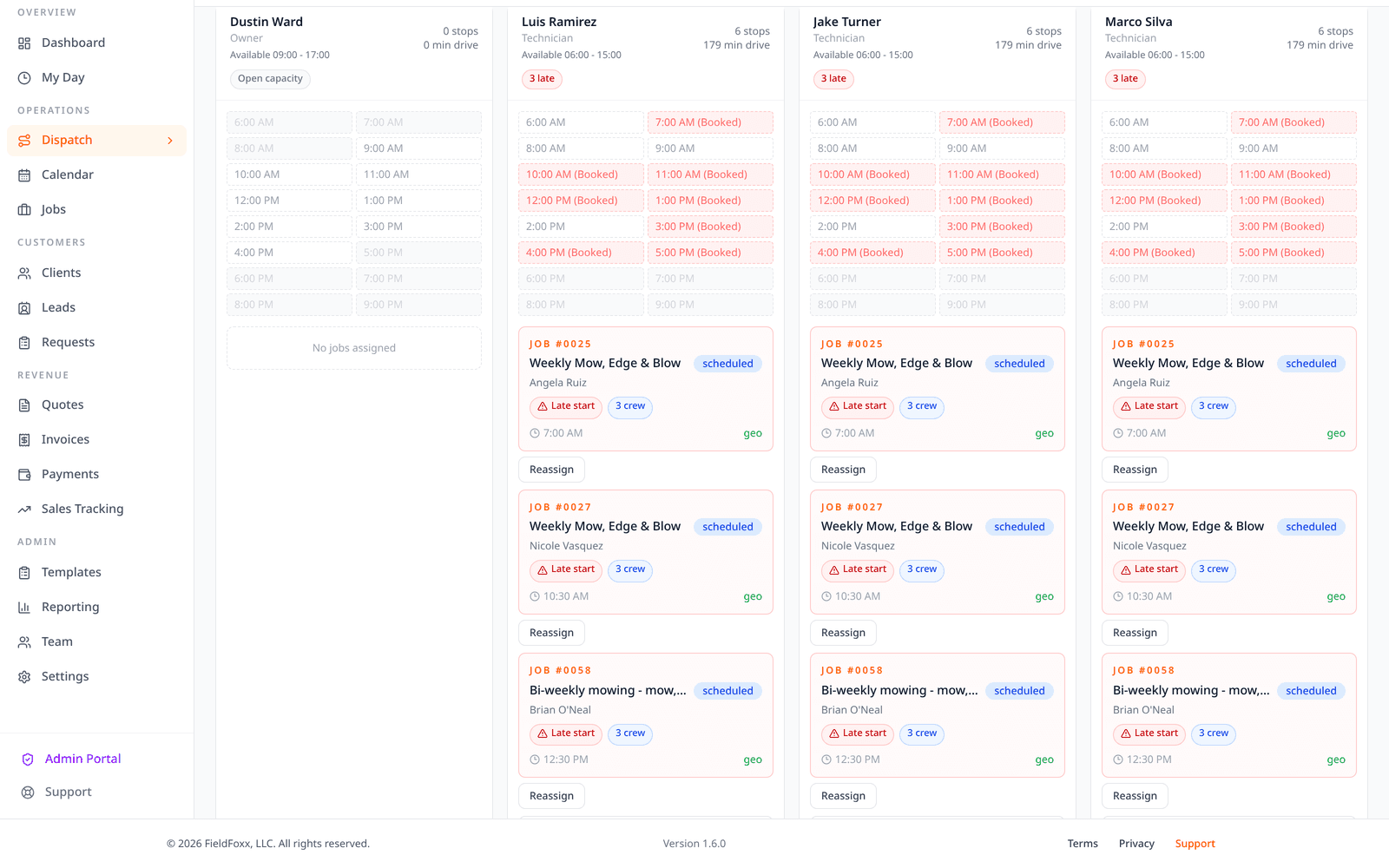
Set up a job once, and FieldFoxx keeps the repeat visits on the calendar.
- Go to Jobs → New job, or use Convert to job on a quote. Pick the date, time and crew.
- For repeat work, check Recurring job. For every other week, choose Weekly and set Every to 2. Monthly works too.
- See everyone's day on Dispatch, and drag a job to move it.
- Clients get an automatic reminder the day before each visit.
Rain days and skipped visits
Rained out? Tap Weather day on Dispatch to move the day's visits to another date or push the rest of the week back one day; choose to send each client one text or email with the new date. Crews can Skip visit from the job or My Day with a reason; the repeating schedule stays put. You can also let customers skip or pause visits from their portal in Company Settings.
Put FieldFoxx on your crew's phones
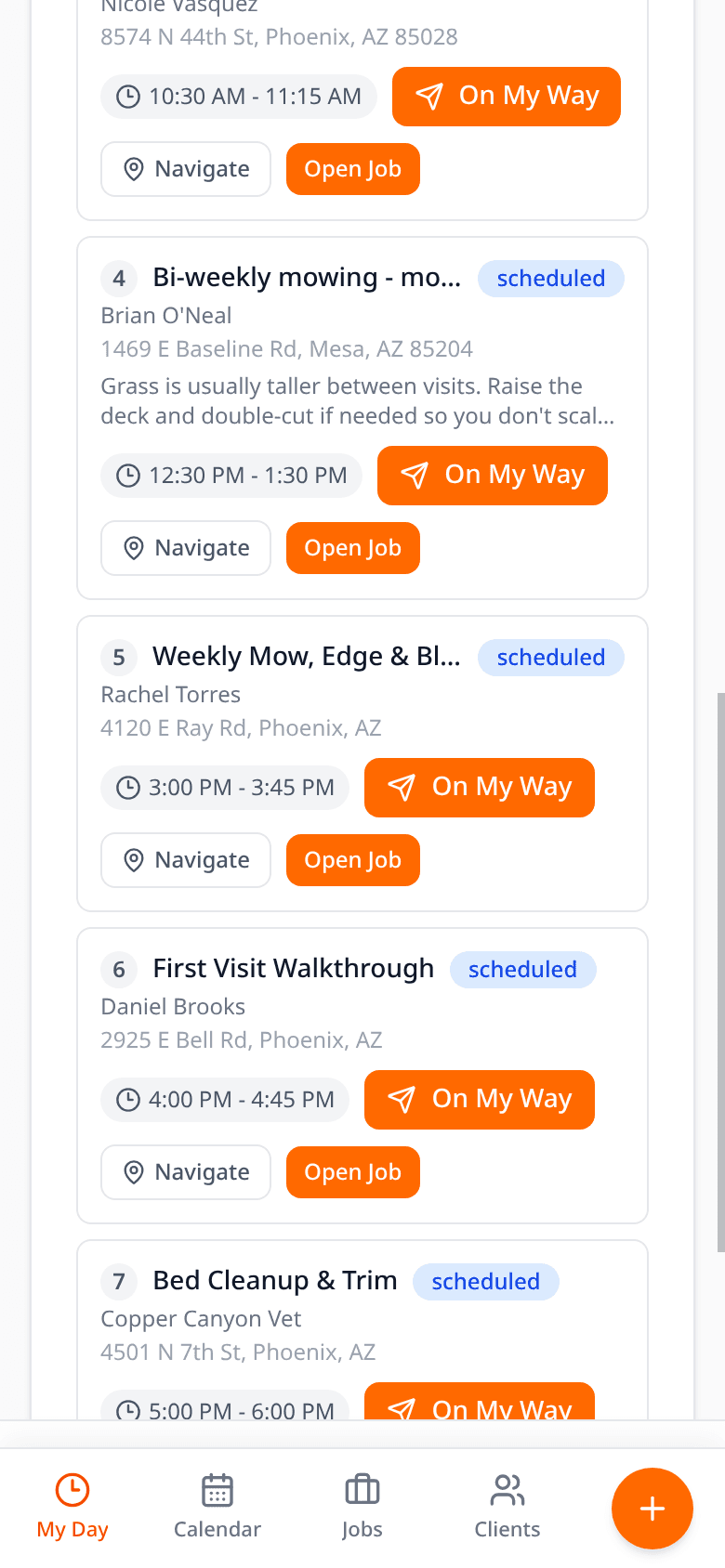
There's no app store download. FieldFoxx runs in the phone's browser and can sit on the home screen like an app.
- On the phone, go to www.fieldfoxx.com/sign-in and sign in with the username and password from step 3.
- iPhone: tap Share, then Add to Home Screen. Android: tap the ⋮ menu, then Install app or Add to Home screen.
- Crews open My Day to see their stops. Sort by Time order or Shortest drive, then tap Start route in Google Maps.
- At each stop, tap On My Way to let the customer know, then Start Job and Mark Complete. Time is tracked automatically.
Note: Crews only see jobs that are assigned to them.
Get paid
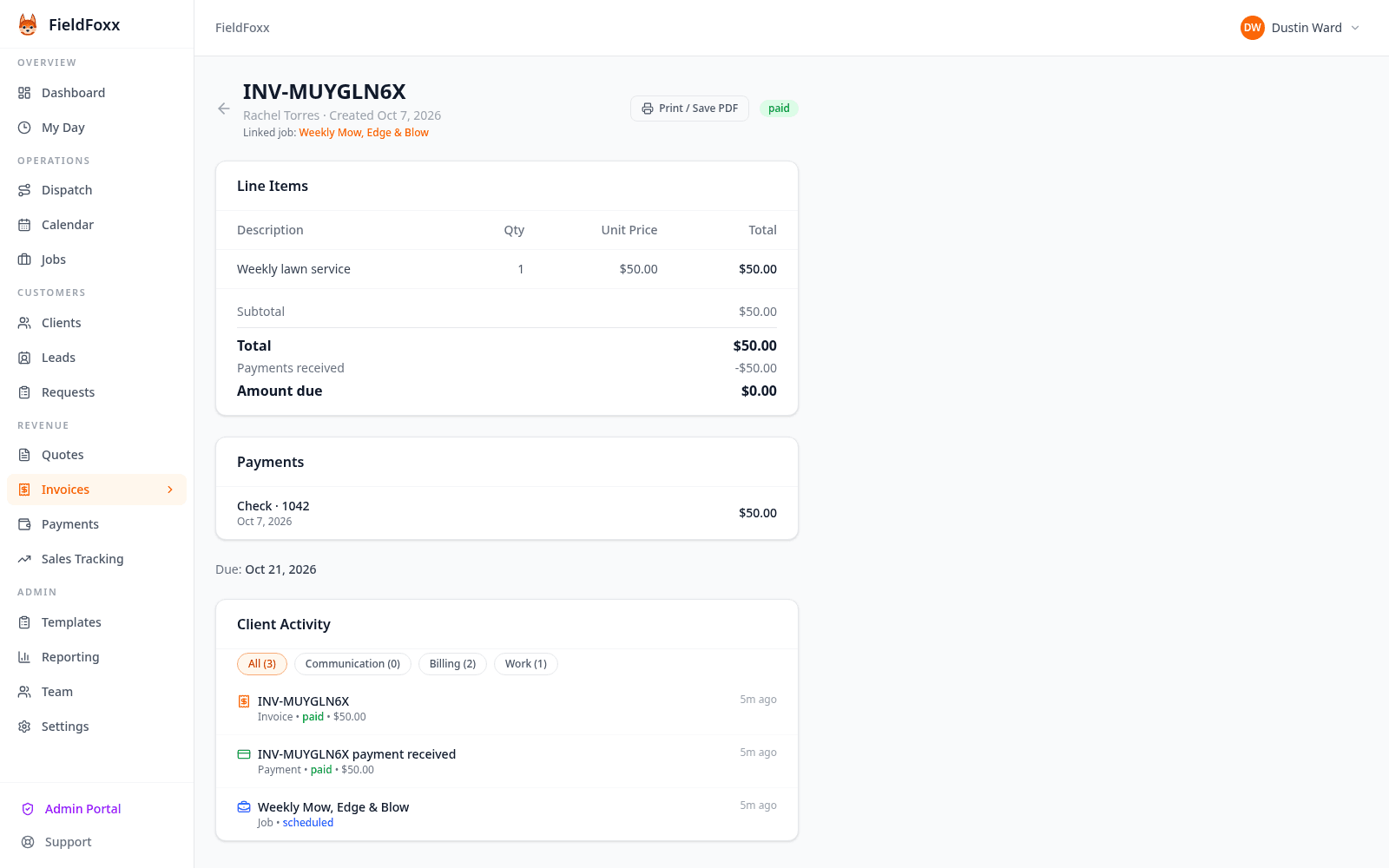
Take cards online or record cash and checks. Every payment lands on the invoice.
- Owner only: go to Settings → Online Payments, tap Connect Stripe account, and finish Stripe's steps until the card shows Active.
- FieldFoxx also does a quick business review before payment links go live. You'll see the status on the same card.
- When a job is done, tap Create Invoice on the job, or tap Invoice completed jobs on the Invoices page to bill several at once.
- Tap Send invoice. Customers pay by card from the email or their client portal.
- Paid in cash or check? Open the invoice and tap Record payment.
- Turn on Invoice Reminders in Settings to nudge customers about unpaid invoices.
A 1% FieldFoxx fee applies to online card payments, plus Stripe's processing fee, including during your free trial. Checks and cash are free.
Connect QuickBooks and Mailchimp (optional)
Both are included on every plan. Only the account owner can connect them.
- QuickBooks Online: go to Settings → Accounting Sync and connect. Tap Sync paid invoices whenever you want to catch up. It sends paid invoices, and the customers on them, 25 at a time.
- Mailchimp: go to Settings → Email Marketing, add your API key and audience, then sync your clients. Client tags can put different clients in different audiences.
After your first day
Reports (every plan)
Revenue, balances and team hours.
Client portal
Each client page has a private link where clients approve quotes and pay invoices, no password needed.
Request page
Share your link so new customers can request work.
Leads pipeline (Business plan)
Track deals, email threads and tasks. Read the CRM guide.
First-week checks
- Send a quote to a test client that has your own email, so you see exactly what customers get.
- Before you send real invoices, make sure Online Payments shows Active and the business review is done.
- Have each crew member sign in on their phone and open My Day.
- After your first paid invoice, tap Sync paid invoices and check it in QuickBooks.
Troubleshooting
My customer can't pay online.
Check that Online Payments shows Active, the business review is approved, and the invoice has been sent.
A crew member can't see a job.
My Day only shows jobs assigned to them. Open the job and add them to it.
A client didn't get an email.
Check the email address on their client page and ask them to look in spam. Then resend from the quote or invoice.
Paid invoices aren't in QuickBooks.
Sync is manual. Tap Sync paid invoices in Settings → Accounting Sync, and reconnect if it shows disconnected.
I don't see Online Payments, QuickBooks or Mailchimp in Settings.
Only the account owner sees those cards.
I can't add another team member.
Individual includes 3 people, including you. The owner can upgrade to Business in Settings → Subscription.
Need help?
Browse the FAQ, or reach us directly.
You can attach screenshots when you send a message.
Founding shop? Locked rates are $12.50/mo (Individual) or $49.50/mo (Business). Call Dustin Ward, our founder, directly at (405) 650-5237.
FieldFoxx is built in Bartlesville, Oklahoma.